Hướng dẫn sửa phần mềm trên windows
- Xử lý khi đôi lúc usb bị tắt, phải dựt ra cắm lại
- Xử lý lỗi "How to fix This file does not have an app associated with it for performing this action. Please install an app or, if one is already installed, create an association in the Default
Xử lý khi đôi lúc usb bị tắt, phải dựt ra cắm lại
B1: tìm "Edit power plan" ở thanh search của windows
B2: Trong cửa sổ "Change setting for the plan balanced: High performance" chọn "Change advanced power settigns"
B3: Trong cửa sổ "power Options" tìm "USB settings -> USB selective suspend settings -> Disabled"
Done
Xử lý lỗi "How to fix This file does not have an app associated with it for performing this action. Please install an app or, if one is already installed, create an association in the Default
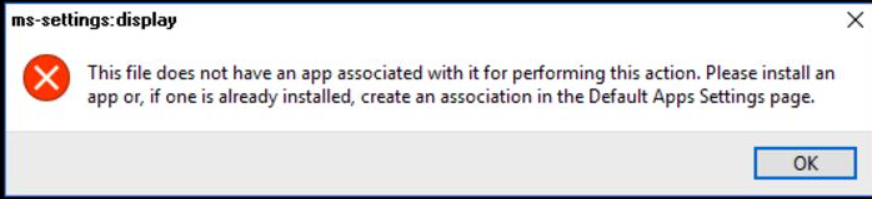
B.1: Ctrl + Shift + Esc mở Task Manager.
B.2:
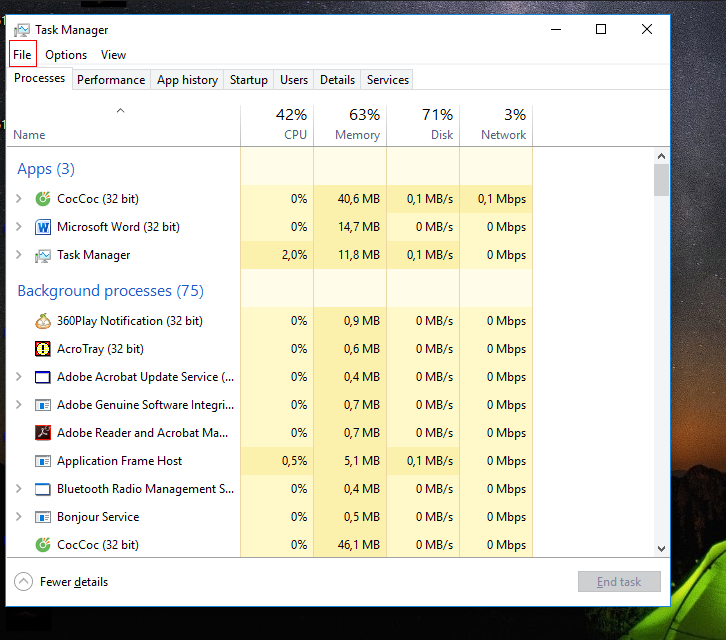
- Win 10: mở file -> run new task -> regedit
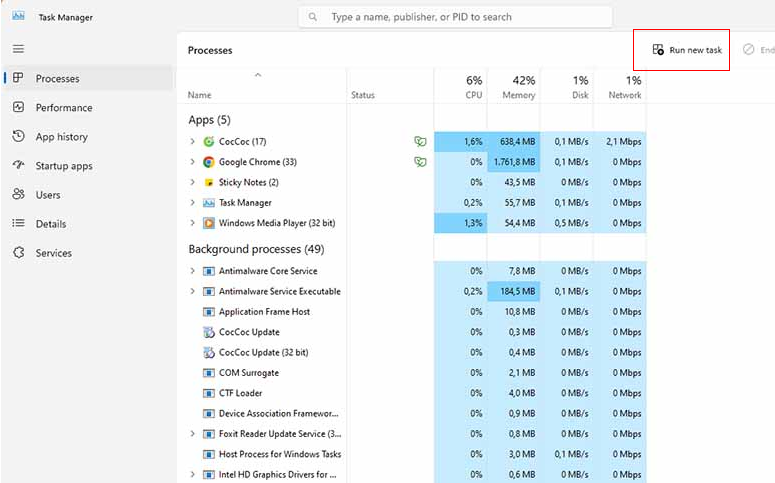
- Win 11: run new task -> regedit
B.3: Truy cập vào Computer\HKEY_CLASSES_ROOT\Inkfile.
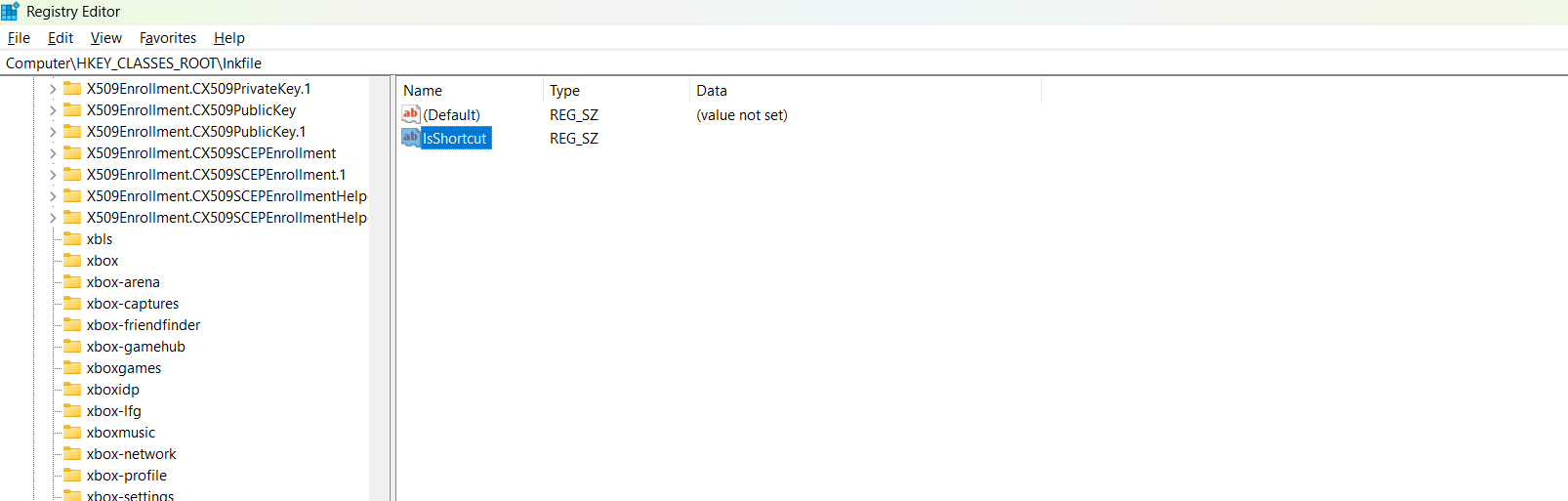
B.4: Xóa IsShortcut -> Tạo lại IsShortcut
B.5: Mở cmd (admin) chạy lệnh bên dưới
sfc /scannow
DISM /Online /Cleanup-Image /CheckHealth
DISM /Online /Cleanup-Image /ScanHealth
DISM /Online /Cleanup-Image /RestoreHealth
B.5 Restart